
Process your Captures
Once a day, open Captures and clear it: turn the saved article into a Weblink, the book tip into a Book, and the stray thought into a line in today’s Daily Note. Then archive or dismiss the rest.
The Captures page is a triage queue for content you saved or received through a capture channel. It isn’t a notification list: reminders, workflow reports, and sync events go to the notification bell.
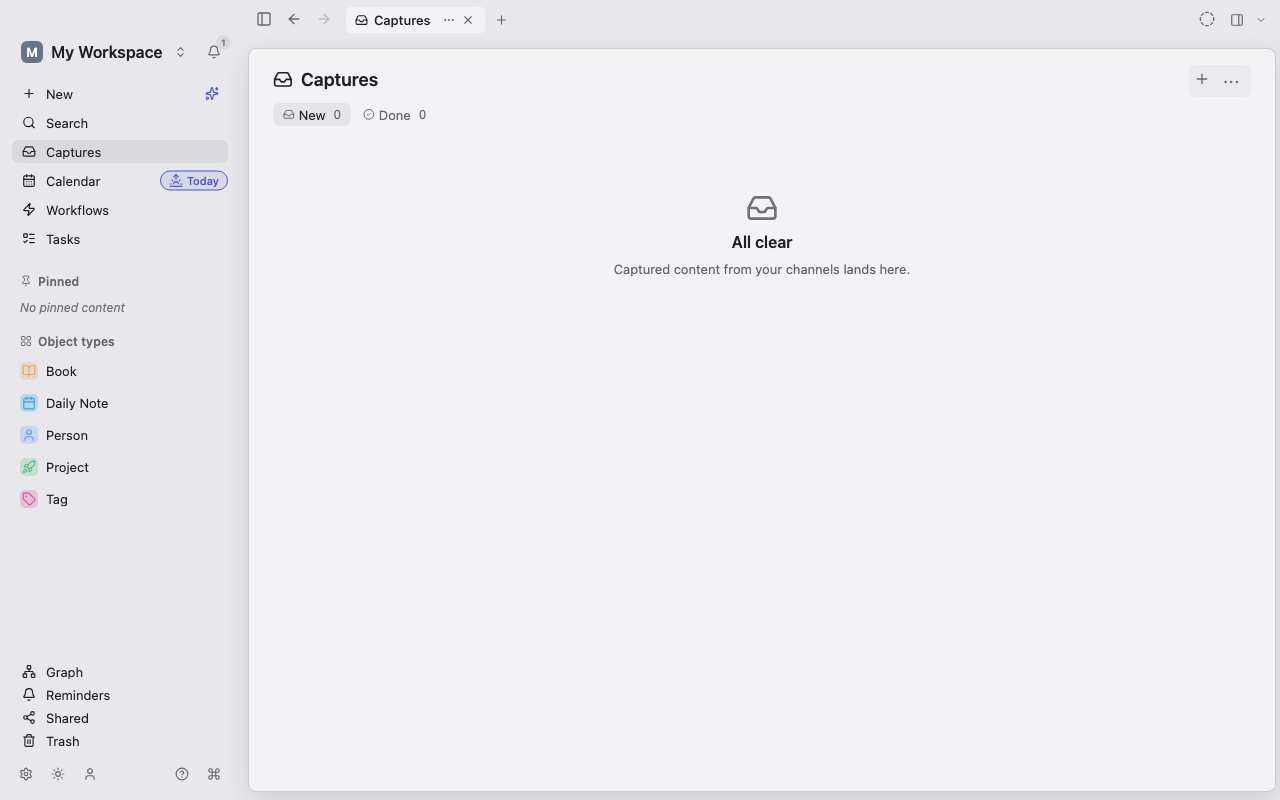
Open and filter Captures
Section titled “Open and filter Captures”- Choose Captures in the sidebar.
- Choose New for items waiting to be processed, or Done for items you archived or dismissed.
- To see one channel only, use the source filter in the header, for example Quick capture, Clipboard, Share sheet, AI agent, or Integration. Choose All to clear it.
Each card shows its source, arrival time, title, a short preview, and any attachments or workflow suggestions. Select a card to open the full preview in the side panel, with content, attachments, suggestions, and conversion controls.
Convert a capture to a typed Object
Section titled “Convert a capture to a typed Object”Converting changes the capture itself into the Type you pick. It keeps its identity, body, backlinks, attachments, and history; Lar doesn’t make a separate copy.
Quick convert from the card:
- Hover over the card and choose Convert (the shapes icon).
- Choose the Type.
Lar converts the item and opens it so you can finish its properties and body.
Convert with a preview:
- Select the card to open it in the side panel.
- Under Convert to…, choose Choose a type… and pick a Type.
- Review the mapping, which shows which captured values fill which properties.
- Choose Convert.
After converting, a Converted to Type message offers Undo. Any required properties Lar couldn’t fill are left for you to complete in the Object editor.
Accept a workflow suggestion
Section titled “Accept a workflow suggestion”A workflow in Suggest mode adds a suggestion chip to matching cards instead of acting on its own.
- Select the suggestion to accept it and run the workflow. With the card focused,
1,2, or3accepts the matching suggestion. - Choose Adjust to review or change the proposed result before accepting.
- Choose Decline to leave the capture as it is.
- From the suggestion’s more-options menu, choose Don’t suggest for source to stop that workflow suggesting for captures from this source.
AI steps don’t run just to show a suggestion. They run only after you accept, and the usual AI consent rules apply.
Send a capture to today’s Daily Note
Section titled “Send a capture to today’s Daily Note”- Open the card’s Capture options menu (⋯).
- Choose Send to Daily Note.
Lar adds the capture’s title, text, and URL to today’s Daily Note as paragraphs, creating the note if needed, then archives the capture. The capture itself stays available, with its source details intact.
Archive a capture
Section titled “Archive a capture”Choose Archive (the box icon) when the item is fine as it is and needs no further work. It moves from New to Done and stays in your workspace as an Object.
Dismiss a capture
Section titled “Dismiss a capture”Open the card’s Capture options menu (⋯) and choose Dismiss when you don’t want to keep the item.
A capture you haven’t converted also moves to Trash when you dismiss it. You can get it back: Restore it from the Done tab, or restore it from Trash.
Restore an archived or dismissed capture
Section titled “Restore an archived or dismissed capture”- Open Captures and choose Done.
- Find the item.
- Choose Restore.
The item returns to New. If dismissing had moved it to Trash, restoring takes it out of Trash too.
Process several captures at once
Section titled “Process several captures at once”- Select the checkbox on each card. Shift-click to select a range.
- In the selection bar, choose Send to Daily Note, Archive, or Dismiss. On the Done tab, choose Restore.
- Choose Clear selection when you’re done.
Bulk actions behave exactly like their single-item versions. In particular, bulk dismiss moves every unconverted capture in the selection to Trash.