
Tasks
Tasks are typed Objects. They can have a body, tags, links, context, and custom properties like any other Object, while the built-in Task dashboard adds scheduling and completion tools.
Turn on Task management
Section titled “Turn on Task management”Open Settings → Task management and enable the feature. This makes Tasks available in navigation and enables Task creation in the compact Create sheet.
Turning the feature off hides the task-specific navigation and controls; it does not delete existing Task Objects.
Create a Task
Section titled “Create a Task”Open Tasks, then choose New or + New task. You can set these fields before creating it:
- title;
- status;
- date;
- deadline;
- priority;
- context;
- repeat rule.
Choose Add task to create it and stay in the list, or Open to create it and open the full Object editor. In the desktop dialog, Enter adds the Task and ⌘/Ctrl+Enter creates and opens it.
Lar can recognize date language typed with a Task title. The date field also accepts phrases such as “next week at 3 pm.” Review the parsed date shown in the form; press Esc when you want to keep ambiguous text as written.
Creating from a Task section seeds the relevant value. For example, creating in Today sets today’s date, Scheduled starts with tomorrow, and Deadline starts with a 5 PM deadline today.
Use the Task dashboard
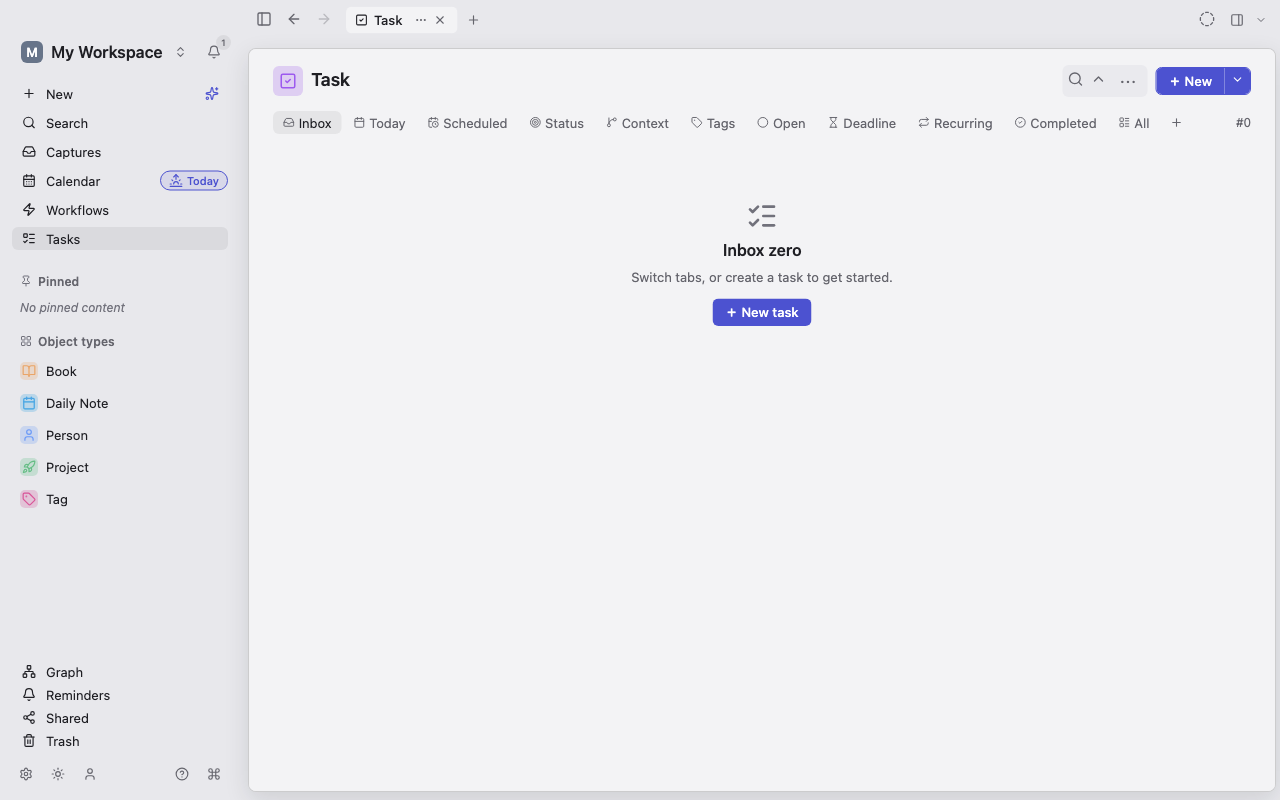
Section titled “Use the Task dashboard”The built-in tabs are:
- Inbox — open Tasks with neither a date nor a deadline;
- Today — open Tasks dated today;
- Scheduled — open Tasks dated after today;
- Status — open Tasks grouped by status;
- Context — open Tasks grouped by linked context Objects;
- Tags — open Tasks grouped by tag;
- Open — every Task whose status is not Done;
- Deadline — open Tasks with a deadline, ordered by deadline;
- Recurring — Tasks with a repeat rule;
- Completed — Done Tasks, newest completion first;
- All — every Task, with the standard Filter, Sort, and Group controls.
Drag the tabs to reorder them. The order is saved for the Task Type. The count at the right is the number of Tasks visible in the current tab.
Add custom Task sections
Section titled “Add custom Task sections”Choose + beside the Task tabs. Lar can add:
- a Kanban grouped by Status;
- a Kanban grouped by Priority;
- a section where Status or Priority is empty;
- a section filtered to a particular Status or Priority option.
Custom sections appear as tabs and can be reordered with the built-in tabs. Choose the × on a custom tab to remove that section. Removing a section does not delete its Tasks.
Edit and complete Tasks
Section titled “Edit and complete Tasks”Task rows expose completion, status, date, and priority without requiring the full editor. On compact layouts, opening a Task from a task list presents a quick-edit sheet; use its expand button for the full Object page.
You can:
- mark a Task complete or reopen it;
- change status and priority;
- set or clear its date and deadline;
- add or remove context Objects;
- add tags and other Object properties in the full editor;
- open the row menu for the standard Object actions.
A Task’s context is a Relation to another Object, not plain text. Use it for connections such as a project, person, meeting, or area.
Set dates and deadlines
Section titled “Set dates and deadlines”The Task date controls support all-day dates and times. A date determines where a Task appears in Today, Scheduled, and the Calendar. A deadline is tracked separately and appears in the Deadline tab.
The Calendar’s Day view shows open Tasks due on that day. When viewing today, it also rolls overdue open Tasks into the Tasks section so they are not missed.
You can drag a dated Task to another Calendar day or choose Move to day. In the Calendar Tasks section, Move all open tasks to offers Today, Tomorrow, Next week, and Next month.
Repeat a Task
Section titled “Repeat a Task”Open the repeat control and choose a preset or Custom. Custom repetition supports:
- every N days, weeks, months, or years;
- advancing from the scheduled date or the completion date;
- no end, or an inclusive end date.
Completing a recurring Task records the occurrence and advances it. The quick editor can show occurrence history, completion rate, current and best streaks, and missed occurrences.
For a missed or exceptional occurrence, open recurrence actions to:
- Skip this occurrence;
- Excuse this occurrence;
- Advance one;
- Catch up across several missed occurrences.
Skipping and excusing are recorded separately from completing an occurrence.
Send a Task to another app
Section titled “Send a Task to another app”Open a Task’s actions and choose Send to app. Available targets currently include Things and Reminders when the matching integration is connected and supported on the device. You can optionally mark the Lar Task Done after sending it.
If no target is connected, the menu points you to Settings. Sending is an outbound copy; the external app does not become the source of truth for the Lar Object.
Link daily-note todos to Tasks
Section titled “Link daily-note todos to Tasks”Open Settings → Daily Notes and enable Link todos to Tasks. Todo blocks in a Daily Note are mirrored into linked Task Objects dated to that day. Checking the todo completes its Task. See Daily Notes for rollover and template behavior.