
Create and manage workflows
A Workflow does routine filing for you: tag every captured link and turn it into a Weblink, give each new Task a starting status, or send yourself a digest every morning. Each Workflow has one trigger, optional filters, and a graph of steps. You decide whether it asks first or runs on its own.
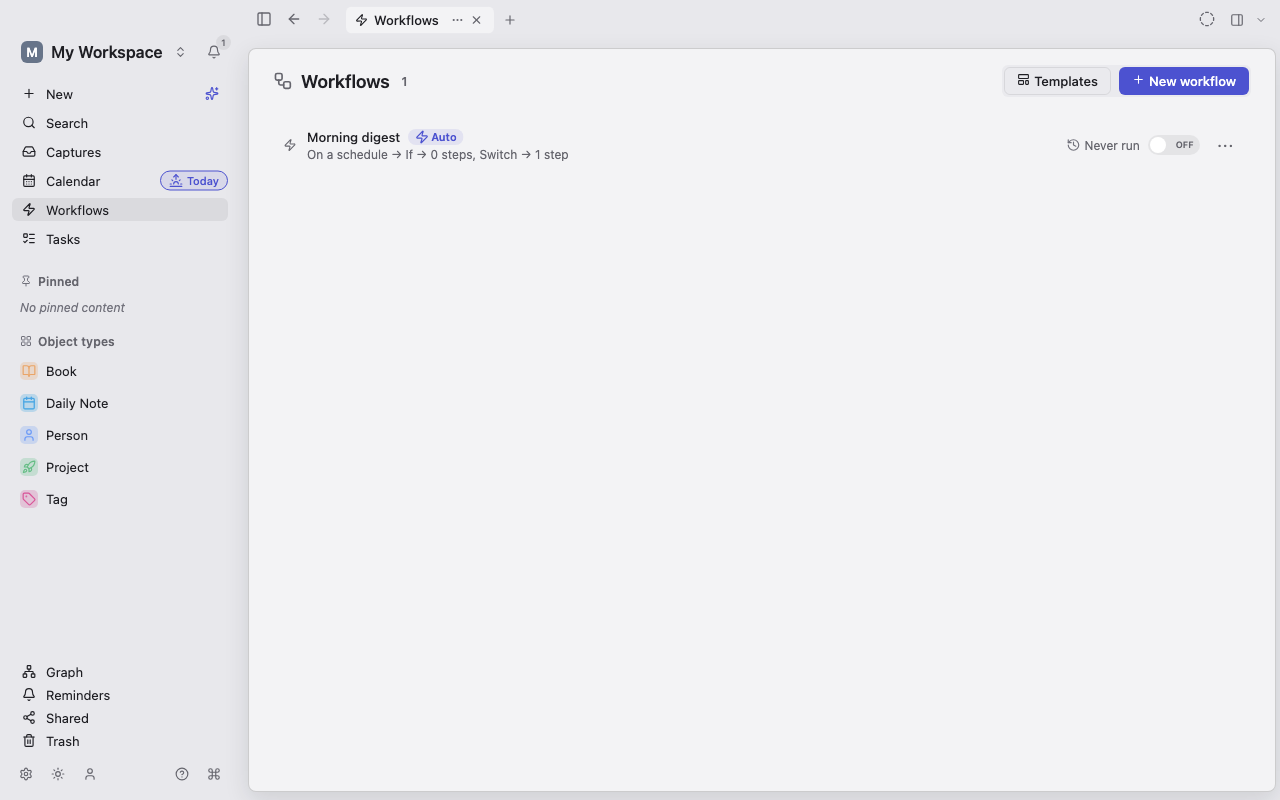
Open Workflows
Section titled “Open Workflows”Select Workflows in the sidebar. The page lists your Workflows in priority order, and each row shows its mode (Auto or Suggest) and whether its configuration is invalid (Config invalid).
From the list you can:
- Turn a Workflow on or off with the switch on its row.
- Drag a row, or focus its handle and press
Alt+↑orAlt+↓, to change its priority. - Open the row’s options menu to Edit, Duplicate, View runs, Export as Module…, or Delete it.
- Choose Templates to open the starter gallery, or New workflow (Ctrl+Shift+W) to start from an empty rule.
- Switch to the Modules, Installed, or Updates tab to add ready-made setups. See Modules.
Workflows run on this device while Lar is open. In the browser and mobile apps they pause while the app is suspended and resume when you return.
Start from a template
Section titled “Start from a template”- Open Workflows and choose Templates, or pick a template from the empty page.
- Choose a starter such as File web clippings as Weblinks, Tag quick captures, Give new tasks a status and priority, Create a meeting follow-up, or Morning “Next up” digest.
- Review the trigger, filters, steps, and mode, then turn it on.
Every template is added turned off, so it cannot change anything before you review it. Templates that need AI show Needs an AI provider until AI is set up. Setups that need a setting filled in, or that bring their own views and Types, are on the Modules tab. See Modules.
Create a Workflow from scratch
Section titled “Create a Workflow from scratch”- Open Workflows and choose New workflow.
- Replace Untitled workflow with a descriptive title.
- Select the trigger node and choose when the Workflow starts. See Triggers.
- Set its Type, source, and filters so it matches only the Objects you mean.
- Choose Add node and pick actions or control steps.
- Drag from each node’s output port to the next node’s input port to connect them.
- Choose Suggest or Run automatically.
- Choose Test and preview the run.
- Switch the Workflow On once the editor reports no problems.
Lar saves changes as you edit. If a saved Workflow becomes invalid, for example because a property it uses was removed, Lar turns it off and highlights the step to fix instead of running part of it.
Choose a mode
Section titled “Choose a mode”Suggest
Section titled “Suggest”Use Suggest while you develop a rule, or whenever a person should decide. A matching Capture shows a suggestion chip, and nothing runs until you accept it. From the chip you can Accept, Adjust the values first, Decline, or open its more-options menu and choose Don’t suggest for that source.
Suggestions survive a restart and sync with the Capture.
Run automatically
Section titled “Run automatically”Use Run automatically only for a rule whose match and steps are safe without confirmation.
For each Capture, Lar checks automatic Workflows in priority order and runs only the first one that matches. Captures that sync in from another device or were interrupted are picked up by a periodic check. Bursts of Object edits are batched so they do not start many runs at once. Scheduled and date-based Workflows record when they fired, to reduce duplicate runs across your devices.
Build a safe graph
Section titled “Build a safe graph”The canvas has four kinds of node:
- Action nodes create, edit, organize, notify, or send data.
- If nodes follow True or False.
- Switch nodes compare a value with numbered cases and fall through to Otherwise.
- For each nodes find matching Objects, run the Each item path once per Object, and continue from Done.
An action’s fields can take a fixed value, a field from the triggering Object, the output of an earlier step, or a template. A step can use another step’s output only when the graph guarantees that step ran first.
Keep these rules in mind:
- Delete object moves the Object to Trash, must be the last step on its path, and is not available for a Capture trigger. Use Discard for unwanted Captures.
- Append to body cannot run on a Type without a body.
- Run workflow runs another Workflow only if its conditions match. It fails if that Workflow is off or deleted, a Workflow cannot call itself, and chains of Workflows calling each other are limited in depth.
- Ask a question and Ask to choose are available only for manual Workflows.
- AI and question steps cannot run inside a For each loop.
Approve Workflows changed by someone else
Section titled “Approve Workflows changed by someone else”In a shared workspace, a Workflow that someone else changed appears under Waiting for your approval and does not run on your device until you approve it. The card shows when it starts, what it applies to, and where it sends data. Choose Approve, or Don’t approve to keep it off on this device.
Duplicate or delete a Workflow
Section titled “Duplicate or delete a Workflow”- Choose Duplicate to experiment without changing a rule that is in use. The copy has its own run history.
- Choose Delete to remove a Workflow permanently. It stops future runs but does not undo changes earlier runs made.
Privacy and consent
Section titled “Privacy and consent”Most steps stay on your device. Two kinds need attention:
- AI steps send the item’s text to your AI provider. An automatic Workflow needs standing AI consent for each kind of AI step; without it, a match becomes a suggestion that waits for approval. Objects excluded from AI are skipped. See AI consent & privacy.
- Send webhook sends exactly the URL, headers, and body that the step resolves to. The step lists which Object fields it includes under What this sends, and you must tick I understand this sends this Object’s data outside Lar before saving. Local and private-network addresses are rejected when the Workflow runs, but the public destination still receives everything you mapped.
Identify entity and Enrich entity may also contact a lookup provider. Review what the step sends and its consent prompt; do not assume the provider receives only a title.