
Create and manage workflows
A workflow connects one trigger to a graph of actions and control steps. Use Suggest mode when you want to approve each match, or Run automatically after you have reviewed and tested a rule you trust.
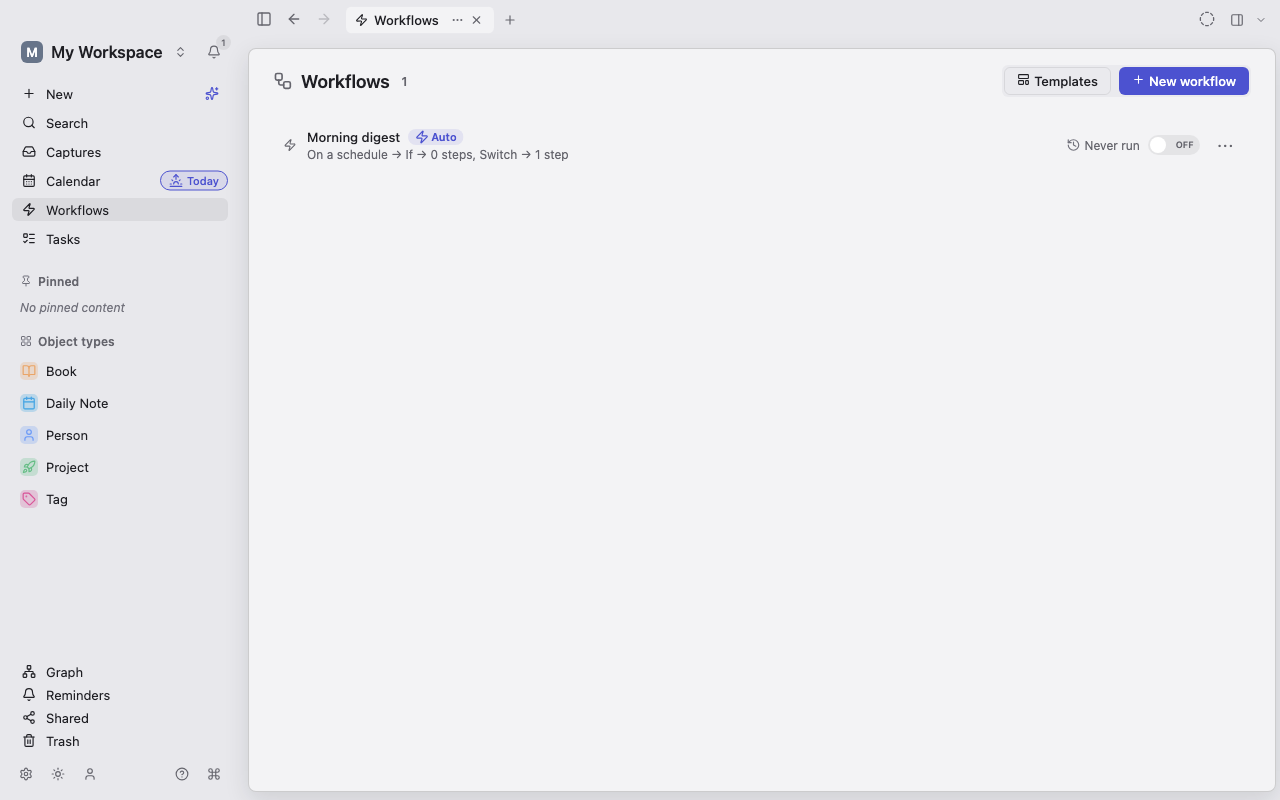
Open Workflows
Section titled “Open Workflows”Select Workflows in the sidebar. The page lists your rules in evaluation order and shows whether each one is enabled, automatic, suggested, or invalid.
You can:
- Toggle a workflow on or off from its row.
- Drag rows—or use their keyboard reorder controls—to change priority.
- Open the options menu to edit, duplicate, view runs, or delete a workflow.
- Select Templates to open the starter gallery.
- Select New workflow to start with an empty rule.
For one Capture, automatic workflows are checked in priority order. The first matching automatic workflow runs. Matching suggestion workflows can still add suggestion chips while the item remains pending.
Start from a template
Section titled “Start from a template”- Open Workflows.
- Select Templates, or choose a template from the empty state.
- Select a recipe such as File web clippings, Auto-tag quick captures, New task defaults, or Meeting follow-up.
- Review the trigger, filters, graph, and mode before enabling it.
Automatic templates are inserted turned off so they cannot silently change existing data before review. Suggest and manual templates can be inserted enabled because a person remains in the execution loop.
Templates that require an AI provider show Needs an AI provider until AI is configured.
Create a workflow from scratch
Section titled “Create a workflow from scratch”- Open Workflows and select New workflow.
- Give the workflow a descriptive title.
- Select the trigger card and choose when the workflow should run.
- Define its Type scope, source restrictions, and filters.
- Add action or control nodes to the canvas.
- Connect each node’s output port to the next node’s input port.
- Choose Suggest or Run automatically.
- Use Test before turning the workflow on.
- Turn the workflow On only after the editor reports no blocking problems.
Changes save from the editor. If a saved graph becomes invalid—for example, a referenced property or relation is removed—Lar turns the workflow off and highlights the problem rather than running a partial interpretation.
Choose a mode
Section titled “Choose a mode”Suggest
Section titled “Suggest”Use Suggest while developing a rule or whenever human judgment should remain part of the process. A matching Capture receives a suggestion chip; no actions run until you accept it.
Suggestions survive restart and sync with the capture. You can accept, adjust, decline, or suppress a workflow for that source.
Run automatically
Section titled “Run automatically”Use Run automatically only for a rule whose match and actions are safe without a confirmation prompt.
Automatic capture workflows run at ingestion and are also reconciled periodically for synced or interrupted items. Object-change events are debounced so one burst of edits does not immediately create many runs. Scheduled and date-property workflows check periodically and record firing markers to reduce duplicate runs across devices.
Build a safe graph
Section titled “Build a safe graph”The canvas supports:
- Action nodes for creating, editing, organizing, notifying, or sending data.
- If nodes with true and false paths.
- Switch nodes with named cases and an otherwise path.
- For each nodes that query matching Objects, run one body path per item, and continue from a done path.
Map values from fixed text, fields on the triggering Object, or outputs from earlier nodes. An output can only be referenced downstream where the graph guarantees that the producer ran first.
Keep these safeguards in mind:
- Delete object is soft delete, must be the final node on its path, and is not available for a Capture trigger; use Discard for unwanted captures.
- Append to body fails on a Type with no body.
- Run workflow evaluates the called workflow’s condition and has a recursion depth limit. A disabled or missing called workflow fails the step.
- Questions and choice prompts are valid only for manual workflows.
- Per-item AI inside a For each body is deliberately unavailable because it has no safe per-item consent and cost model yet.
Enable, disable, duplicate, or delete
Section titled “Enable, disable, duplicate, or delete”- Use the row or editor toggle to enable or disable a workflow.
- Use Duplicate to experiment without changing a rule that is already in use. The copy gets its own identity and run history.
- Use Delete to permanently remove the workflow definition. Deleting it stops future runs but does not undo changes made by earlier runs.
Privacy and consent
Section titled “Privacy and consent”Most workflow actions remain on device. Two categories require particular attention:
- AI actions may send the item’s text to the configured AI provider. Automatic workflows require standing AI consent; without it, a match becomes a needs-approval suggestion. Objects marked as excluded from AI skip AI actions.
- Send webhook transmits exactly the URL, headers, and body resolved by that node to an external server. The editor shows which Object fields are included and requires an explicit acknowledgment. Private-network destinations are rejected, but the public destination still receives the data you mapped.
Entity identification or enrichment may also contact a configured provider. Review its evidence mapping and consent prompt; do not assume that a provider receives only a title.